Knowledgebase article 98
Infinite Campus - Enable Login Alert Notification with Verification Code
Infinite Campus is migrating to the Login Alert Notification with Verification Code to comply with our insurance and school procedures for security. If you are an IC user or have an IC account this will take effect on Monday, Feb 14 at 3:30 PM. Below are the instructions on how to set up this verification. At this time it will not affect the student or parent portals.
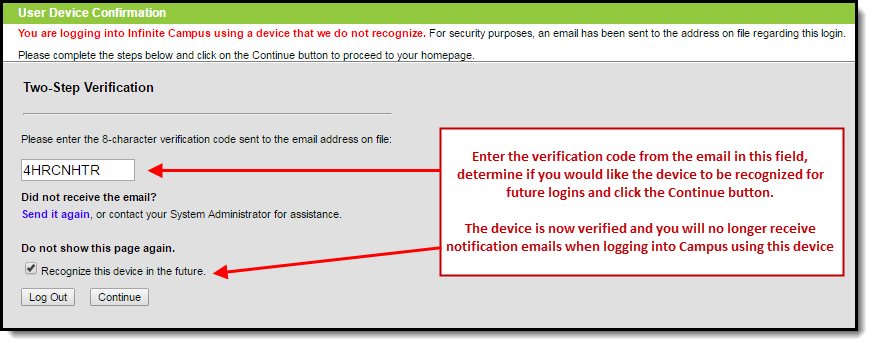
Once the Send an alert and require a verification code when logging into a new device radio button is selected, users logging into Campus for the first time from a device will be required to enter an Account Security Email address (if one is not already present within Campus) and will be directed to a new screen where they will have to enter a verification code and decide if they would like the device to be remembered for future logins (Image 7).
In order for a device to be recognized for future logins, your browser MUST be set to allow cookies.
Having your browser set to automatically delete cookies will cause the device to not be recognized and force you to go through this process each time you log into Campus.

Image 7: Entering an Account Security Email and Entering a Verification Code
Below is an example of the email that will be sent to your account. This email contains the 8-character verification code that must be entered in the box show above (Image 7).
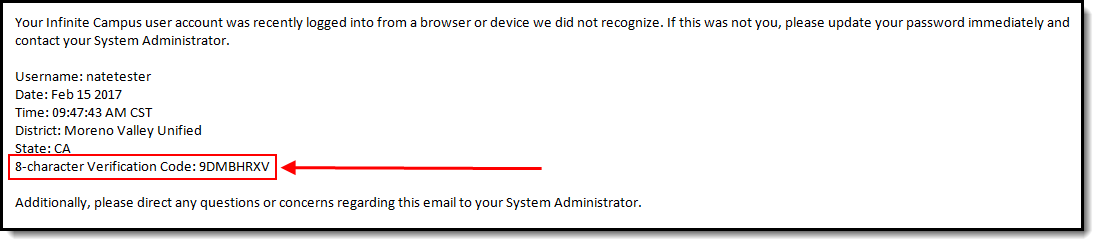
Image 8: Finding the Verification Code
Enter the 8-character verification code into the box shown below, decide if the device should be remembered for future logins by marking the Recognized this device in the future checkbox, and click Continue (Image 9). The device is now verified and you will no longer receive notification emails when logging into Campus using this device.