Knowledgebase article 57
Keyboard Shortcuts - Windows
Attached is the common Windows 7 keyboard shortcuts.
Windows Key:
How to Take Screenshot:
Snip and Sketch tool can be used to take several types of screen shots. To Activate:
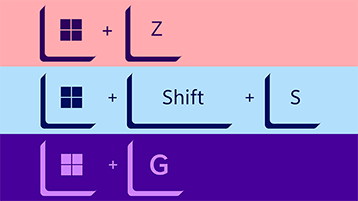
Press keys: Windows Key + Shift + S {Snip is saved to the clipboard and can be pasted where needed}
Desktop Shortcuts
The following desktop keyboard shortcuts allows you to efficiently
open, close, navigate, and perform tasks across the desktop environment,
including the Start menu, Taskbar, Settings, and more.
Alt + Esc - Cycle through open windows.
Alt + F4 - Close active window. (If no active window is present, a shutdown box appears.)
Alt + F8 - Reveals typed password in Sign-in screen.
Alt + Left arrow key - Go back.
Alt + Page Down - Move down one screen.
Alt + Page Up - Move up one screen.
Alt + Right arrow key - Go forward.
Alt + Spacebar - Open context menu for the active window.
Alt + Tab - Switch between open apps while pressing Tab multiple times.
Alt + Underlined letter - Runs command for the underlined letter in apps.
Ctrl + Alt + Tab - View open apps.
Ctrl + Arrow keys - Change Start menu size.
Ctrl + Arrow keys (to select) + Spacebar - Select multiple items on desktop or File Explorer.
Ctrl + Click a grouped app button - Cycle through windows in the group from the Taskbar.
Ctrl + Down arrow key - Move the cursor to the beginning of the next paragraph.
Ctrl + F5 (or) Ctrl + R - Refresh current window.
Ctrl + Left arrow key - Move the cursor to the beginning of the previous word.
Ctrl + Right arrow key - Move the cursor to the beginning of the next word.
Ctrl + Shift - Switch keyboard layout.
Ctrl + Shift + Arrow key - Select block of text.
Ctrl + Shift + Click app button - Run app as administrator from the Taskbar.
Ctrl + Shift + Esc - Open Task Manager.
Ctrl + Spacebar - Enable or disable Chinese IME.
Ctrl + Up arrow key - Move the cursor to the beginning of the previous paragraph
Shift + Arrow keys - Select multiple items.
Shift + Click app button - Open another instance of an app from the Taskbar.
Shift + F10 - Open context menu for selected item.
Shift + Right-click app button - Show window menu for the app from the Taskbar.
Shift + Right-click grouped app button - Show window menu for the group from the Taskbar.
Windows Key Shortcuts
The "Windows key," when used with other keys, enables you to execute numerous handy tasks such as launching Settings, File Explorer, the Run command, and apps pinned to the Taskbar, as well as open specific features like Narrator or Magnifier. Additionally, you can manage windows and virtual desktops, take screenshots, lock the computer, and more.
Here is a list of the most common keyboard shortcuts utilizing the Windows key.
Windows Key - Open Start menu.
Windows Key + A - Open Action center.
Windows Key + Alt + D - Open date and time in the Taskbar.
Windows Key + Alt + Number (0-9) - Open Jump List of the app in number position in the Taskbar.
Windows Key + B - Set focus notification area in the Taskbar.
Windows Key + Comma (,) - Temporarily peek at the desktop.
Windows Key + Ctrl + D - Create a virtual desktop.
Windows Key + Ctrl + Enter - Open Narrator.
Windows Key + Ctrl + F - Open search for the device on a domain network.
Windows Key + Ctrl + F4 - Close active virtual desktop.
Windows Key + Ctrl + Left arrow - Switch to the virtual desktop on the left.
Windows Key + Ctrl + Number (0-9) - Switch to the last active window of the app in the number position in the Taskbar.
Windows Key + Ctrl + Q - Open Quick Assist.
Windows Key + Ctrl + Right arrow - Switch to the virtual desktop on the right.
Windows Key + Ctrl + Shift + B - Wake up the device when black or a blank screen.
Windows Key + Ctrl + Shift + Number (0-9) - Open another instance as an administrator of the app in the number position in the Taskbar.
Windows Key + Ctrl + Spacebar - Change previous selected input option.
Windows Key + D - Display and hide the desktop.
Windows Key + Down arrow key - Minimize app windows.
Windows Key + E - Open File Explorer.
Windows Key + Esc - Exit magnifier.
Windows Key + F - Launch Feedback Hub app.
Windows Key + Forward-slash (/) - Start IME reconversion.
Windows Key + G - Launch Game bar app.
Windows Key + H - Open dictation feature.
Windows Key + Home - Minimize or maximize all but the active desktop window.
Windows Key + I - Open Settings.
Windows Key + J - Set focus on a tip for Windows 10 when applicable.
Windows Key + K - Open Connect settings.
Windows Key + L - Locks computer.
Windows Key + Left arrow key - Snap app or window left.
Windows Key + M - Minimize all windows.
Windows Key + Minus (-) - Zoom out using the magnifier.
Windows Key + Number (0-9) - Open the app in number position in the Taskbar.
Windows Key + O - Lock device orientation.
Windows Key + P - Open Project settings.
Windows Key + Pause - Show System Properties dialog box.
Windows Key + Period (.) or Semicolon (;) - Open emoji panel.
Windows Key + Plus (+) - Zoom in using the magnifier.
Windows Key + PrtScn - Capture a full screenshot in the "Screenshots" folder.
Windows Key + R - Open Run command.
Windows Key + Right arrow key - Snap app or window right.
Windows Key + S (or Q) - Open Search.
Windows Key + Shift + Down arrow key - Windows 11: Restore the window if it is snapped or maximized. Windows 10: Maximize or minimize active windows vertically while maintaining width.
Windows Key + Shift + Left arrow key - Move active window to monitor on the left.
Windows Key + Shift + M - Restore minimized windows on the desktop.
Windows Key + Shift + Number (0-9) - Open another app instance in the number position in the Taskbar.
Windows Key + Shift + Right arrow key - Move active window to monitor on the right.
Windows Key + Shift + S - Create part of the screen screenshot.
Windows Key + Shift + Up arrow key - Stretch desktop window to the top and bottom of the screen.
Windows Key + Shift + V - Cycle through notifications.
Windows Key + Spacebar - Change keyboard layout and input language.
Windows Key + T - Cycle through apps in the Taskbar.
Windows Key + Tab - Open Task View.
Windows Key + U - Open Ease of Access settings.
Windows Key + Up arrow key - Maximize app windows.
Windows Key + V - Open Clipboard bin.
Windows Key + W - Open the Windows Ink Workspace.
Windows Key + X - Open Quick Link menu.
Windows Key + Y - Change input between desktop and Mixed Reality.
Windows Key + Z - Switch input between the desktop experience and Windows Mixed Reality.